Blog ·
Apple’s New Screen Time Guide: A Homework Settings Checklist
Review Apple’s Screen Time budgets, schedules and Always Allowed exceptions before setting homework rules, with a separate Android comparison.
On this page7 sections
A phone can have a sensible daily limit and still be awkward to use for homework. The class portal needs to open, a calculator needs to work, and family calls need to get through. Those decisions belong in the settings review as well as the time budget.
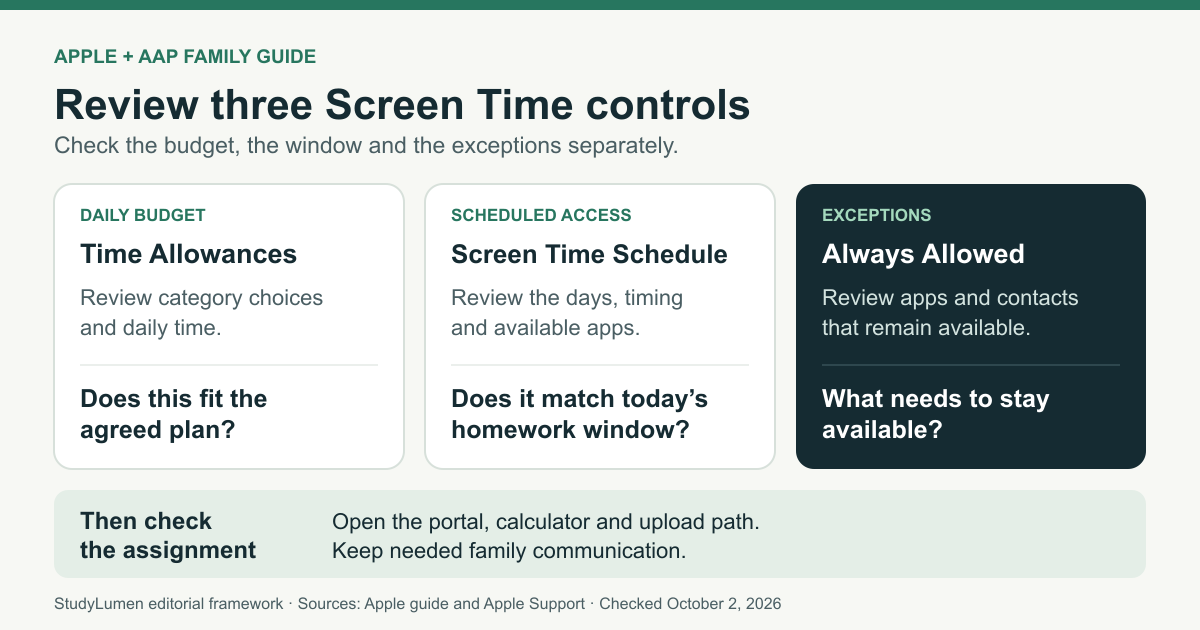
On September 29, 2026, Apple and the American Academy of Pediatrics (AAP) released a family guide connecting family conversations with Apple’s device controls. Its schedule section gives parents a useful place to start. Before relying on it for an assignment, check three things separately: the daily allowance, the apps available during the scheduled window, and the exceptions that remain available.
Complete the family update first
Apple’s updated controls require every device in the Family Sharing group to run version 27 software. That includes the relevant iOS, iPadOS, macOS, watchOS and visionOS devices. Apple notes that availability can vary by region, language and device model.
There is another step after the software updates: the organizer, parent or guardian must update parental controls for the family group. Updating the child’s phone alone does not complete that procedure. Apple says families that cannot update every device can continue using the previous controls or adjust settings directly on the child’s device.
Check which controls your family actually has before following the menus below. The September 29 announcement introduces the guide; Apple’s parental-controls help page carries a September 14 publication date.
A daily budget and a schedule answer different questions
Time Allowances set a daily budget across app categories such as games and entertainment, with adjustments for individual categories. Screen Time Schedules determine which apps are available at particular times. A parent can choose weekdays, weekends or a custom schedule.
The guide names Before School, School and After School windows. An After School label may cover several activities. For homework, review the actual days, timing and available apps against the assignment your child has today.
Apple’s current schedule instructions begin with this sequence:
- Open Settings, choose Family, then your child’s name.
- Open Screen Time Schedule and turn on Schedule.
- Scroll down to Add Schedule.
- Select the days it should apply to.
Then follow the settings shown on your device. For example, a homework period after football practice may need different timing from an afternoon when the child comes straight home. Choose a duration that fits the work and the household plan; these pages do not prescribe one universal homework duration.
Review Always Allowed separately
The guide’s schedule section explains that Always Allowed apps and contacts remain available when a Time Allowance has been used or a schedule pauses other access. It lists FaceTime, Maps, Phone and Messages among the default apps.
Keep the communication your child needs to reach family members. Review the other exceptions by name. An allowed messaging app can also contain conversations unrelated to the assignment, so talk about how it will be used during homework. An app’s availability and the household’s agreement about its use are separate decisions.
Match the settings to one real assignment
Try the review with an assignment already in front of you. Suppose it needs a class portal, a calculator and an upload at the end. Write those names down, then open each tool on the child’s device far enough to see whether it works under the intended settings.
Homework settings review
- Review question
- Does the daily budget fit the agreed plan?
- Setting to inspect
- Time Allowances
- Check against the assignment
- Review category choices and available time without treating the total as a homework timetable.
- Review question
- Are the right apps available at the right time?
- Setting to inspect
- Screen Time Schedule
- Check against the assignment
- Check the applicable days and window, including afternoons with activities.
- Review question
- What stays available through a pause?
- Setting to inspect
- Always Allowed
- Check against the assignment
- Keep needed family communication; review each other exception by name.
- Review question
- Can the work be completed?
- Setting to inspect
- The tools on the child’s device
- Check against the assignment
- Open the portal, calculator and submission path under the intended settings.
| Review question | Setting to inspect | Check against the assignment |
|---|---|---|
| Does the daily budget fit the agreed plan? | Time Allowances | Review category choices and available time without treating the total as a homework timetable. |
| Are the right apps available at the right time? | Screen Time Schedule | Check the applicable days and window, including afternoons with activities. |
| What stays available through a pause? | Always Allowed | Keep needed family communication; review each other exception by name. |
| Can the work be completed? | The tools on the child’s device | Open the portal, calculator and submission path under the intended settings. |
A calculator opening successfully does not tell you whether the portal’s sign-in or file-upload page will open. Our always-on homework tools guide covers that app-and-website check in more detail.
The AAP’s Family Media Plan advice recommends discussing rules with children and revisiting them as routines change. It names the beginning of a school year and holiday breaks as review opportunities. Its visible date is “Last Updated January 20, 2026.” That is older planning advice supporting a review habit, rather than a study of the new Apple guide.
You can also revisit the plan when an assignment needs an extra tool. Decide what is needed and when the exception ends, then check that the device settings reflect that decision.
Android needs its own settings check
On a Family Link–supervised Android device, use Google’s Downtime and School time instructions. Google supports these schedules on Android 7 and later and lets parents allow Unlimited apps during either window. They have their own settings and exceptions; Apple’s menu names do not describe them.
Communication also differs between the two Google schedules. During School time, call and text notifications are silenced, while the child can still call and text. During Downtime, calls remain available, and texting requires the messaging app to be allowed as an Unlimited app. Check the schedule you intend to use and preserve the contact your child needs.
The same assignment review still works: name the tools, choose the window and check the exceptions on the actual device.
Where StudyLumen fits
For a repeating homework window on a supervised Android device, a StudyLumen routine applies one rule set chosen by the supervisor. Map the apps from your review into that rule set. A temporary access request can cover an extra tool until its recorded end time; the temporary-access guide explains that flow.
This is a way to apply an agreed Android routine, with no promise of better grades or concentration. If repeating the plan would help your family, use the setup guide after completing the assignment review.
Sources
- Apple and AAP family guide announcement — Apple Newsroom, September 29, 2026; guide release and availability.
- Make a schedule for device use — Apple/AAP guide, checked October 2, 2026; schedule labels and Always Allowed.
- Set up parental controls — Apple Support, published September 14, 2026, checked October 2; update requirements, allowances and schedule menus.
- How to Make a Family Media Plan — AAP HealthyChildren, last updated January 20, 2026, checked October 2; discussion and review advice.
- Set a schedule for your child’s device — Google Family Link Help, checked October 2, 2026; Android schedules and communication exceptions.