Guide ·
YouTube Shorts Limits for Homework: Choose the Right Control
Check self-set and parent-set Shorts limits, account type, zero-minute availability, and the separate app rules a homework session needs.
On this page8 sections
Your student needs a YouTube video for an assignment, but you want Shorts scrolling to stop during homework. Before changing a timer, check whose account and settings you’re using. A limit set by the viewer has a different result from one set by a linked parent.
YouTube’s January family announcement used homework as an example for a zero-minute Shorts limit. The controls have developed since then. Start with the current account instructions, then decide whether the assignment needs the Shorts feed, regular videos or the whole app.
Start with the account on the screen
A teen can link their account with a parent through Family Center. YouTube’s teen setup guide explains that either person can remove supervision. Agree on the homework rule together; linking accounts does not make supervision permanent.
For a younger child, use the separate supervised-kid instructions. That page covers children under 13 or the relevant age in their country or region. A supervised kid account on YouTube and the YouTube Kids app have different instructions. If a school manages the login or device setting, ask its administrator before changing it.
Choose between a viewer reminder and a parent-set feed limit
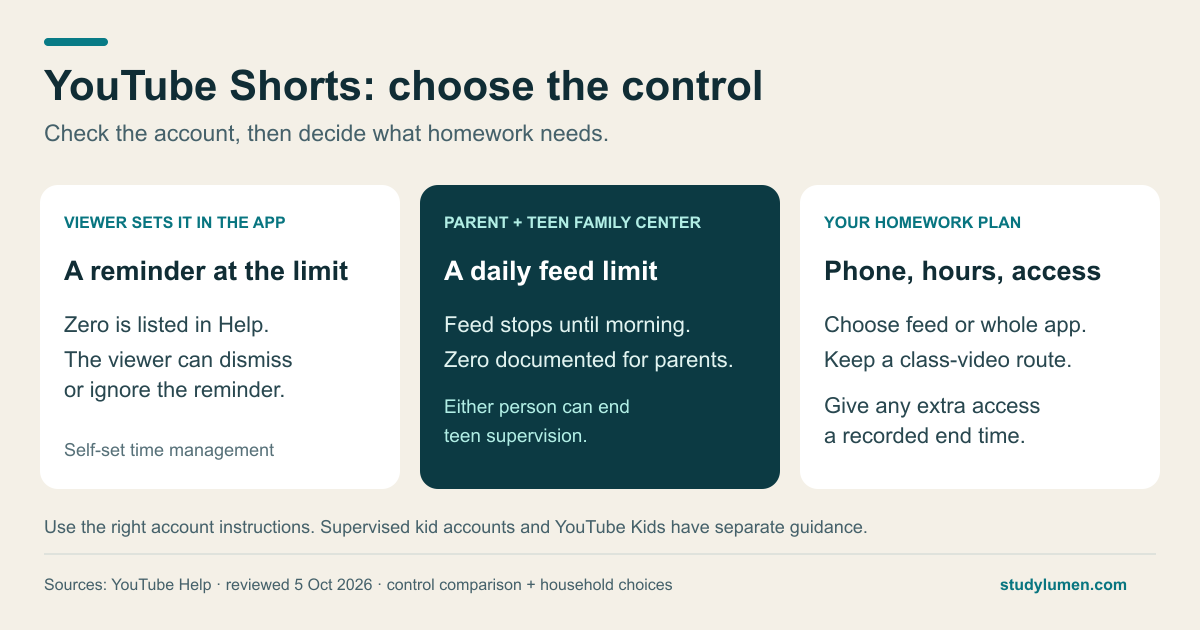
For a self-set limit, the signed-in viewer opens the YouTube app, then You → Settings → Time management → Shorts feed limit. Zero is among the listed options. At the limit, a reminder appears; the viewer can dismiss or ignore it.
For a supervised teen, the parent opens Family Center, selects the teen’s account and uses Time management → daily Shorts feed limit. The Android teen guide says reaching the limit stops Shorts-feed scrolling for the rest of the day, with a reset each morning. This is the feed limit, rather than the separate take-a-break or bedtime reminder.
- Account and actor
- Viewer sets a limit in the YouTube app
- Documented result
- A reminder appears at the selected limit; the viewer can dismiss or ignore it.
- Check before homework
- Use it as a self-management reminder. Confirm whether that is the rule you agreed on.
- Account and actor
- Linked parent sets a supervised teen’s daily feed limit
- Documented result
- Shorts-feed scrolling stops for the day and resets each morning.
- Check before homework
- Use the teen instructions and current parent menu. Supervision itself can be removed.
- Account and actor
- Linked parent manages a supervised kid account
- Documented result
- The kid guide also describes a daily feed stop and morning reset.
- Check before homework
- Use the kid account’s settings. Do not borrow its menu details for a teen or for YouTube Kids.
| Account and actor | Documented result | Check before homework |
|---|---|---|
| Viewer sets a limit in the YouTube app | A reminder appears at the selected limit; the viewer can dismiss or ignore it. | Use it as a self-management reminder. Confirm whether that is the rule you agreed on. |
| Linked parent sets a supervised teen’s daily feed limit | Shorts-feed scrolling stops for the day and resets each morning. | Use the teen instructions and current parent menu. Supervision itself can be removed. |
| Linked parent manages a supervised kid account | The kid guide also describes a daily feed stop and morning reset. | Use the kid account’s settings. Do not borrow its menu details for a teen or for YouTube Kids. |
Zero is documented for parents, too
The teen mobile guide places the parental zero-minute option’s availability from March 2026. YouTube’s April 20 Europe announcement then confirmed that parents there could turn the scrolling feed off with zero minutes. January’s “soon” wording is historical context, not today’s rollout status.
The supervised-kid page does not list zero, and the teen Computer help tab omits the timer section. Those omissions do not establish that the feature is absent. Follow the instructions for your account and device, and check the actual options before relying on a setting. The mobile procedure here does not establish how limits behave on TVs, browsers or logged-out sessions.
Keep a route to the class video
A Shorts-feed limit addresses scrolling in that feed. It does not choose homework hours or set rules for games and other apps. The cited timer instructions also do not describe blocking regular YouTube videos.
If the assignment uses a regular video, choose whether YouTube should stay available for that task or whether the student should open it during a named exception. If the teacher assigned a Short, account for that before setting the feed to zero. Keep the required link with the assignment and decide when access ends.
Set the phone’s hours separately
For a family already using Family Link on a supervised Android device, Downtime and School time provide schedules on Android 7 and up. In the parent app, open Screen time → Schedules, choose the schedule, and set its days and start/end times.
Check the allowed-app settings alongside those hours: selected Unlimited Apps can remain available during either schedule. A daily YouTube feed budget and an Android schedule can therefore answer different parts of your plan. Write down which setting handles each part, rather than expecting a Shorts timer to cover the phone.
Keep the homework decision on one card
These are household choices to fill in before the session:
- Account: viewer-set, parent-linked teen, supervised kid, or school-managed.
- Phone and hours: the device, start time and end time.
- YouTube access: Shorts feed, regular videos or the whole app.
- Required material: the class-video link and a route to open it.
- Exception: who approves extra access, what it covers and when it ends.
When the whole app should pause
On a supervised Android phone, a StudyLumen study routine can apply one selected rule set during the hours you chose. You might pause the YouTube app while keeping a class app available. This applies the app decision; it does not set YouTube’s Shorts timer.
If a required video comes up during that block, a temporary access request can cover the extra tool until its recorded end time. Name the tool and duration when approving it, so the exception has a clear finish.
Sources
- YouTube: January family controls announcement — the original homework example.
- YouTube Help: set a Shorts feed limit — viewer-set options and the dismissible reminder.
- YouTube Help: teen Family Center features, Android — parent-set feed limits, reset and zero option.
- YouTube Help: set up a supervised teen account — account linking and who can remove supervision.
- YouTube Families Help: supervised-kid controls, Android — the separate kid-account procedure.
- Google Family Link: device schedules — Android schedule and allowed-app settings.
- YouTube: Europe parental-controls announcement — April 20, 2026 availability confirmation.