Blog ·
Keep the Class App On. Leave the Rest of the Phone Off.
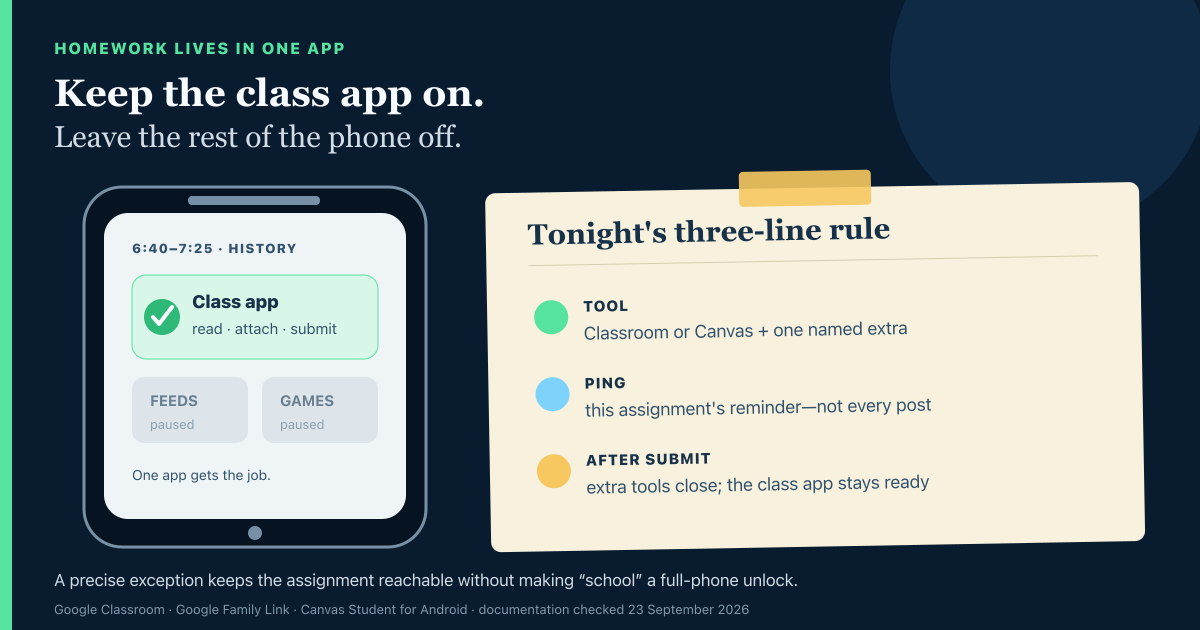
When homework lives in Classroom or Canvas, split the app into three jobs: the tool, the useful ping and the point when the exception ends.
On this page7 sections
It is 6:40 p.m. The phone is about to hit its Daily Limit, and the PDF is inside the class app.
“I have to leave it on. That's where homework is.”
Unlocking the whole phone gives every other app the same exception. Leaving it locked strands the assignment. The class app needs a smaller permission—one that describes its job without turning “school” into a synonym for the entire device.
The class app has three different jobs
Classroom or Canvas is not one continuous reason to keep a phone open. During an ordinary evening it can be a tool, a source of one useful reminder, and then a record of work already submitted.
- Job
- Tool
- Keep
- Read the assignment, attach the file, submit the work
- Do not inherit
- The whole browser or every app carrying a school login
- Job
- Ping
- Keep
- A chosen assignment reminder or returned-work alert
- Do not inherit
- Every course post, comment and invitation
- Job
- After submit
- Keep
- The app can remain ready for the next class
- Do not inherit
- Feeds staying open because homework might return
| Job | Keep | Do not inherit |
|---|---|---|
| Tool | Read the assignment, attach the file, submit the work | The whole browser or every app carrying a school login |
| Ping | A chosen assignment reminder or returned-work alert | Every course post, comment and invitation |
| After submit | The app can remain ready for the next class | Feeds staying open because homework might return |
The labels work with another school portal too. Write the app name—or the one exact URL—rather than “Google,” “research” or “school websites.” The always-on tools guide uses the same principle for calculators, printer pages and portals.
Unlimited should mean Classroom, not the browser
On supported Family Link devices, an app marked Unlimited does not count toward the child's Daily Limit and remains available after the limit is reached. Google also lets a parent allow Unlimited apps during Downtime or School time. The feature is supported for a child signed in on Android 7 and later, except Google Kids Space.
That makes an LMS a plausible Unlimited app. It does not make a broad browser a safe substitute. If the assignment is in the Classroom app, keep Classroom. If the teacher named one website, keep that site through the household's website controls. “Chrome because school” carries every other tab along for the ride; Chrome blocks and app blocks solve different problems.
There is one easy-to-miss edge: manually locking the child's device hides Unlimited apps unless the parent changes the lock-screen setting. A plan that works after a Daily Limit may therefore behave differently after a manual lock. Test the actual state before the assignment begins.
School time brings another tradeoff. It can allow Unlimited apps, but Google says the schedule silences notifications—including call and text notifications—while calls and texts still work. That may be appropriate in class and awkward at 6:40. A named homework window avoids borrowing the school-day behavior by accident.
Keep one assignment reminder, not every course interruption
The class app's notification settings deserve their own decision. They are not the same as permission to open the app.
Google Classroom separates email from notifications on the mobile device, and it lets students and teachers change notification settings or turn off notifications for one class. Google's default examples include comments and work returned by a teacher. A household can keep the item that leads back to a real assignment and quiet the running stream.
Canvas offers a more explicit choice in its Android app. Push categories are on or off; enabled pushes are sent as soon as possible. Email categories can be immediate, daily, weekly or never. Canvas also lets a student add a reminder to a particular assignment or quiz, including work without a due date. That reminder is attached to the task instead of every course event.
Try the smallest useful ping:
- a reminder for the assignment that is actually due;
- returned work that needs another pass;
- a private comment tied to that submission.
An announcement feed, a class invitation and a burst of unrelated comments do not all need the lock screen. The right mix depends on the teacher and platform, so check the labels on the child's device rather than copying a screenshot from another phone.
Turned in ends one job
In Google Classroom for Android, a student may see Turn in or Mark as Done, depending on the assignment. Work submitted after the due date is recorded as late. If the student needs to change submitted work, Google says to unsubmit it, make the change, and submit again before the due date.
When the status reads Turned in, the tool job for that assignment has ended. Classroom can remain available for another class, but the browser, video app or group chat opened for this piece of work does not receive a permanent pass.
Sometimes a second tool really is needed: a new reference link, a document scanner, a short group-project call. Name that exception and give it an end time. The group-project exception guide shows how to grant the needed channel without unlocking the rest of the evening.
Put tonight's rule on one card
The card does not need instructions for every button. It needs the decisions that are easy to lose during an argument.
6:40–7:25 · history response
Tool: Classroom + document editor
Ping: this assignment's reminder only
Pause: feeds, games, stores
After submit: editor closes; Classroom stays ready
One extra ask: named app or site, with an end time
If the LMS lives only on a school Chromebook, shrink the personal-phone card. The phone may need no class-app exception at all. If the only copy of the assignment is on the personal Android, keep the precise tool instead of pretending the school's daytime phone rule followed the child home.
When the card needs to run on schedule
StudyLumen can repeat this card as a routine on a supervised personal Android. One routine activates one rule set, so the LMS and document editor can remain available while selected apps pause. Website filtering is optional and can be added when the assignment genuinely needs a browser.
A supervisor can respond to a request for one named app, site or extra-time target; an approved grant ends at its recorded end time. Notification choices still live in Classroom, Canvas or Android itself. StudyLumen supplies the study boundary, not access to the school's LMS or messages. The Family Link comparison explains how those roles differ.
Sources
- Google Classroom Help, Manage notifications on Android, retrieved 23 September 2026.
- Google Classroom Help, Turn in an assignment on Android, retrieved 23 September 2026.
- Google For Families Help, Set app time limits, retrieved 23 September 2026.
- Google For Families Help, Set a schedule, retrieved 23 September 2026.
- Instructure Community, Set notification preferences in the Canvas Student app for Android, retrieved 23 September 2026.
- Instructure Community, Create an assignment or quiz reminder in the Canvas Student app for Android, retrieved 23 September 2026.