Blog ·
Using Family Link School Time for Homework? Check the App List First.
School Time can run after class, but it uses Unlimited apps and silences notifications. Check the app list before extending it into homework.
On this page7 sections
A setup conflict can look like this: it is 4:20, the worksheet is open, and the school portal is not. On the child's Android, School Time is still doing exactly what it was set up to do—leaving only approved apps available and silencing notifications.
Google says families may run School Time outside class. The extra hour on the clock is not the problem. The trouble starts when a school-day app list follows the student home even though the assignment needs different tools.
The schedule changed; the app list did not
Google's current Family Link schedule help says School Time works on Android 7 and later. A parent can set a weekly schedule, change today's start and end times, add a break, and choose whether Unlimited apps remain available.
While School Time is active, notifications for calls and texts are silent, but the child can still call and text. That distinction matters after school: a quiet phone may still support pickup contact, while an app missing from the allowed set remains unavailable.
Google's 2024 School Time announcement is explicit that the feature can also run outside class. Its 2025 Family Link update describes parent-chosen allowed apps for School Time. So an evening block is a supported use, not a misuse of the feature.
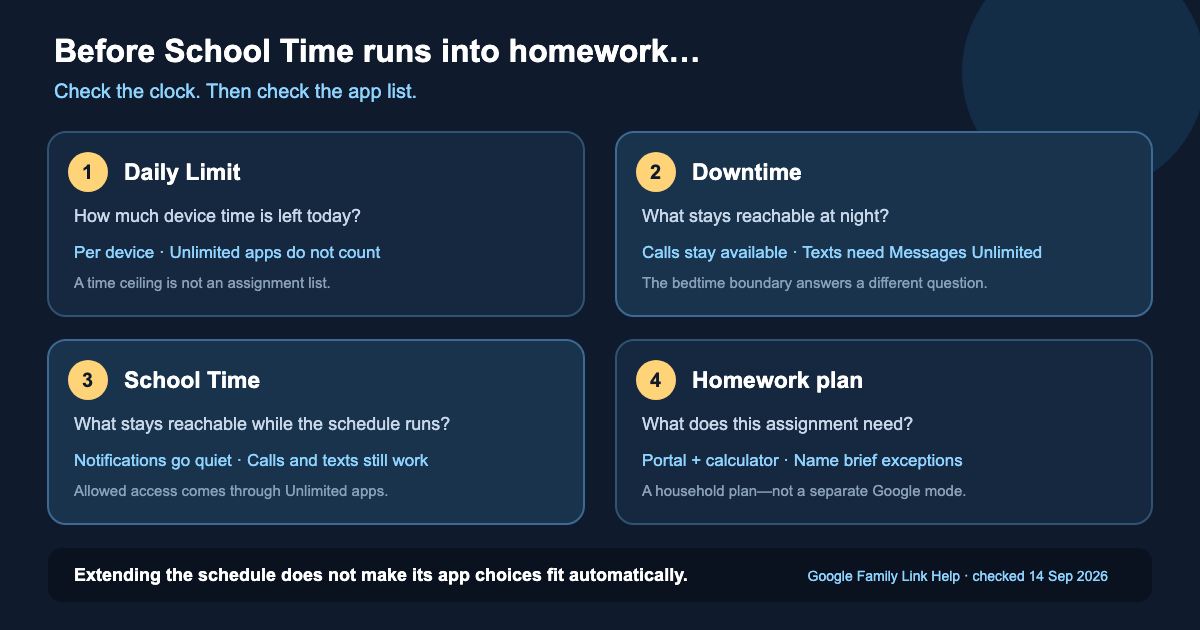
The app choices still need a second look. Family Link's current instructions route School Time availability through Unlimited time apps. Those apps do not count toward the Daily Limit, remain available after that limit is reached, and can also be allowed during Downtime. Marking an app Unlimited solves more than one schedule question at once—which may be useful, or much broader than tonight's assignment needs.
Four controls answer four different questions
The labels sit near one another in Family Link, but they do different jobs.
Four Android controls and the questions they answer
- Control
- Daily Limit
- The question it answers
- How much device time is available today?
- What to check
- The limit applies to each Android device or Chromebook. Unlimited apps do not count toward it.
- Control
- Downtime
- The question it answers
- What stays reachable during a night or rest schedule?
- What to check
- Calls remain available. Texting requires the messages app to be Unlimited.
- Control
- School Time
- The question it answers
- What stays reachable while this weekly or one-day schedule runs?
- What to check
- Notifications for calls and texts are silent; calling and texting still work. Check the Unlimited apps.
- Control
- Homework plan
- The question it answers
- What does this assignment need between its start and end?
- What to check
- This is a household decision, not a separate Google mode. Name the tools before choosing the control.
| Control | The question it answers | What to check |
|---|---|---|
| Daily Limit | How much device time is available today? | The limit applies to each Android device or Chromebook. Unlimited apps do not count toward it. |
| Downtime | What stays reachable during a night or rest schedule? | Calls remain available. Texting requires the messages app to be Unlimited. |
| School Time | What stays reachable while this weekly or one-day schedule runs? | Notifications for calls and texts are silent; calling and texting still work. Check the Unlimited apps. |
| Homework plan | What does this assignment need between its start and end? | This is a household decision, not a separate Google mode. Name the tools before choosing the control. |
Google's screen-time help gives a useful warning about totals: a two-hour Daily Limit means two hours on each supervised Android device or Chromebook, not two hours shared across the household. A daily ceiling can be working exactly as designed while the wrong app remains open—or the required one stays blocked.
Start with tonight's assignment, not a generic block list
Open the assignment first. Then sort the apps and sites into three small groups:
- Needed from the start: the school portal, document editor, calculator, timer, and any tool the teacher named.
- Needed only if the task reaches that point: a particular website, a teacher-assigned video, or a project message thread.
- Able to wait: feeds, games, shopping, and unrelated video.
Now compare that card with the apps marked Unlimited in Family Link. If School Time will cover the homework block, keep only the tools that genuinely need to work throughout it. Remember that Unlimited status also affects the Daily Limit and may be allowed during Downtime; it is not a label that belongs only to one worksheet.
For a resource needed briefly, changing a broad app setting may be clumsy. A written end time, a narrower website decision, or a named request can fit better. The always-available apps guide helps with the first group. If the assignment needs one site but not an open browser, see Chrome blocks versus app blocks.
Bonus time fixes minutes, not missing apps
Family Link's help says Bonus time adds device time without rewriting the Daily Limit, Downtime, or School Time schedule. That makes it useful when the day's clock ran out and the active app choices are already right.
It does not turn a blocked portal into an allowed app or create a homework-specific list. If the student still cannot reach the assignment after more minutes are added, inspect the active schedule and Unlimited apps instead of adding more time again.
The school rule hands off at dismissal
England's current mobile-phone guidance for schools became statutory on June 29, 2026, and schools were told to begin following it on September 1. It covers the school day, including lessons, corridors, breaks, and lunch. The guidance also asks schools to encourage parents to discuss and reinforce the policy at home.
That conversation does not set the evening app list. Once homework begins, the family still has to decide which portal, calculator, browser, or contact the task requires. The American Academy of Pediatrics' family media-plan guidance treats homework as one possible household zone and recommends revisiting the plan at the start of a school year. It is planning guidance, not evidence that one setting improves grades.
Keep the bell schedule if it already works
If one careful Unlimited-app list works for both school and homework, Family Link may be enough. Leave the schedule understandable and stop there.
When the two periods genuinely need different rules, a paper card or a separate routine may be clearer than changing the same app status back and forth. On a supervised personal Android, StudyLumen can run a scheduled homework routine with one selected rule set, optional website filtering, and temporary access that closes at its recorded end. Temporary access requests shows that narrower exception flow.
Android still owns notification settings, and StudyLumen does not replace Family Link's account controls or manage a school Chromebook or iPhone. In this setup, its role is simply to keep the bell schedule and the homework window from sharing rules that do not fit both.
Sources
- Set a schedule on your child's device — Google For Families Help; School Time and Downtime behavior, checked September 14, 2026
- Manage your child's screen time — Google For Families Help; per-device Daily Limits and Bonus time, checked September 14, 2026
- Set app time limits on your child's device — Google For Families Help; Unlimited time apps, checked September 14, 2026
- Giving parents more choice with School Time — Google, August 1, 2024
- Google Family Link brings new supervision tools for parents — Google, February 12, 2025
- Mobile phones in schools — UK Department for Education; England statutory guidance updated June 29, 2026
- How to Make a Family Media Plan — American Academy of Pediatrics' HealthyChildren site; updated January 20, 2026