Guide ·
School Account or Family Link? Check Who Controls Homework Access
Separate school sign-in from Family Link device rules. Match a blocked homework task to the account, control and person who can change it.
On this page6 sections
The homework app asks for a school sign-in, but the phone also has a Family Link schedule. Which setting needs attention—and who can change it?
Start by separating the school account from the device rules. The school may manage access to its services while a parent manages the child's personal account. Naming the part that is blocked helps you take the problem to the right person.
Separate the school sign-in from the phone rules
Google's Classroom guide for families describes using a school account in Classroom on an Android device while Family Link continues managing the personal account. Its setup procedure includes parental permission. A school sign-in therefore does not, by itself, tell you that the phone's supervision has ended.
Google also documents a separate Android school-account error. That page identifies the school administrator as the manager of the Workspace for Education account. If adding the account fails, use the help route for the app and message you actually see, and ask the school for its supported setup. Keep existing accounts in place while you resolve it.
A sign-in problem and a phone schedule need different changes. Before extending device time, check whether the assignment is asking for school credentials or whether a device control is preventing the app from opening.
Check which Chromebook user holds the school account
On a Chromebook, Google describes a specific arrangement: ChromeOS 89 or later, a personal account supervised with Family Link, and the school account added as a secondary account with parental permission.
In that arrangement, Family Link controls apply while the child uses the supervised personal user, including school apps. The school administrator still controls which Google services the school account can access. Google's Chromebook school-account guide distinguishes this from a school account added as a separate user on the sign-in screen; that user does not inherit Family Link controls.
For a school-managed Chromebook, confirm the permitted arrangement with school IT before changing accounts or settings. The personal-account example is not permission to reconfigure a school device.
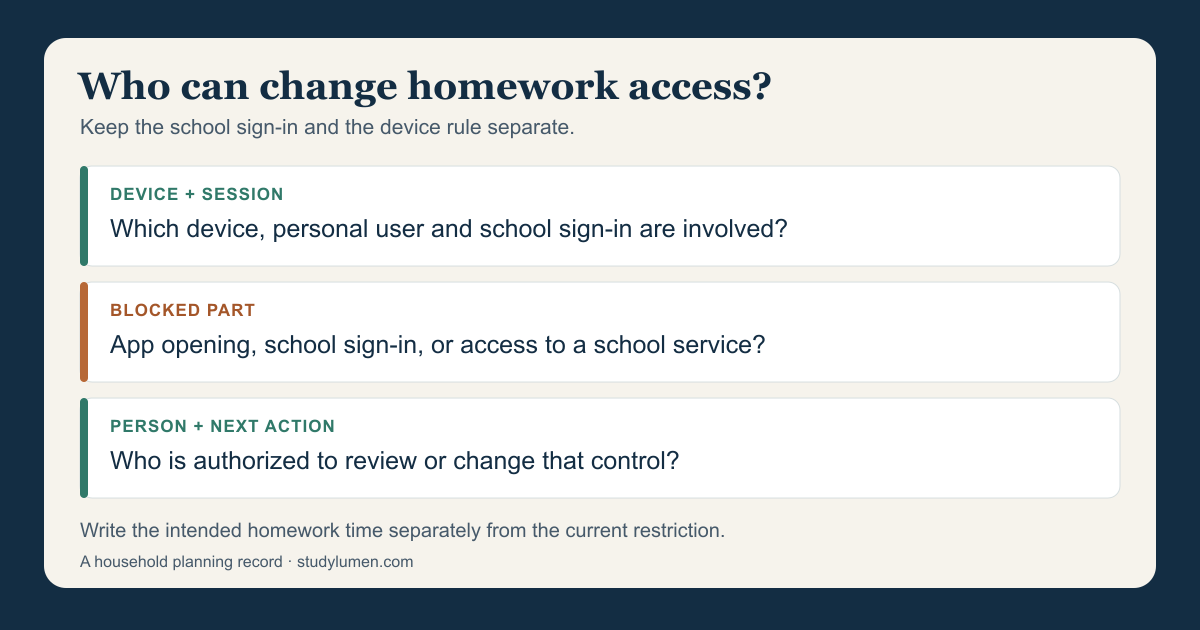
Keep a short record of the access problem
You can agree the homework task and intended time before any schedule exists. Keep that plan separate from a record of what currently prevents access. This household record is useful when a second caregiver or school support team needs to help.
- Record
- Device and session
- Write this
- Android phone or Chromebook; supervised personal user, in-app school account, or separate school user.
- Why it helps
- Keeps account sign-in and device supervision distinct.
- Record
- Blocked part
- Write this
- The app will not open, the school sign-in fails, or a required school service is unavailable.
- Why it helps
- Names the problem before anyone changes a rule.
- Record
- Person and next action
- Write this
- The parent reviews the device control, or school support checks the school access problem.
- Why it helps
- Gives the request to someone authorized to act.
| Record | Write this | Why it helps |
|---|---|---|
| Device and session | Android phone or Chromebook; supervised personal user, in-app school account, or separate school user. | Keeps account sign-in and device supervision distinct. |
| Blocked part | The app will not open, the school sign-in fails, or a required school service is unavailable. | Names the problem before anyone changes a rule. |
| Person and next action | The parent reviews the device control, or school support checks the school access problem. | Gives the request to someone authorized to act. |
Use account types rather than passwords or a child's identifying details. Add the required task and agreed start and end to your household plan; a failed login does not decide how long homework should take.
Save only the schedule you intend to change
For an Android device already supervised through Family Link, Google supports School time and Downtime on Android 7 or later. A parent can review schedules by selecting the child, then Screen time, then Schedules.
If a change is needed, Google's schedule instructions separate a weekly edit from a change for today. A weekly edit selects days and start and end times, then saves with Done. Use the today-only route when that is the intended scope. Opening the schedule alone changes nothing.
Review the allowed apps as well: Google permits Unlimited apps during these schedules, so a schedule is not a blanket lock. If the school controls the affected setting, take the access problem to its administrator instead of treating a parent schedule as the solution.
Carry the Android plan into a StudyLumen routine
When the household plan includes a supervised personal Android phone, a supervisor can use one scheduled StudyLumen routine to apply one selected rule set during the agreed window. Homework mode explains that part of the plan; the school account keeps its own access rules.
If an extra tool is needed briefly, a temporary access request provides access only after supervisor approval, until the recorded end time. Approval changes StudyLumen's own restriction. A Family Link limit or school access problem still needs attention through its own authorized control.