Blog ·
Ofcom Gaming Report: Check Time Limits and Chat Settings
Use Ofcom's October gaming report to review app time limits and in-game chat separately, then record the settings your family agrees.
On this page7 sections
When you set a time limit for a game, there is another decision to make: who can your child communicate with while playing? Ofcom's October gaming report offers a useful reason to review both. Start with the device and game your child actually uses, then check where each setting lives.
Ofcom reports three different family rules
Ofcom published its gaming research summary on October 13, 2026. It brings together earlier research rather than reporting new October fieldwork.
On page 12, 56% of parents reported rules about how much time their child could spend gaming, 51% about when they could play, and 43% about who they could play with. These figures concern parents of UK children aged 3–17 who play games, a sample of 2,522 parents. Families could report several rules, so the percentages don't tell us which parents used both time and contact rules.
Those are reported household choices. They don't establish a suitable daily limit for your child.
Choose where to change each rule
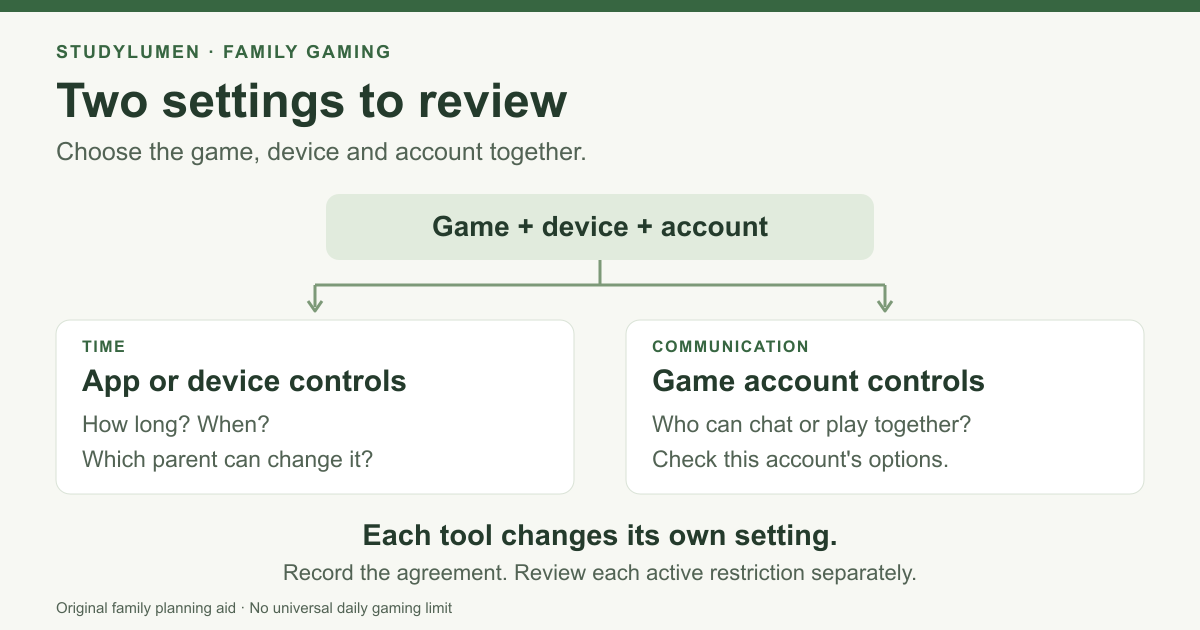
A family agreement needs a place to take effect. A phone's app timer can limit use of the game app; the game's communication settings govern a different part of the experience.
- Family decision
- Which game and device?
- Where to check
- The device and game account your child uses
- What to record
- The game, device and account being reviewed
- Family decision
- How long and when?
- Where to check
- The relevant app limit or device schedule
- What to record
- The agreed limit or window, and who can change it
- Family decision
- Who can communicate?
- Where to check
- The game's account and communication settings
- What to record
- The available setting and the choice made together
- Family decision
- When will you review it?
- Where to check
- Each tool that has an active restriction
- What to record
- A review date and which parent will check each setting
| Family decision | Where to check | What to record |
|---|---|---|
| Which game and device? | The device and game account your child uses | The game, device and account being reviewed |
| How long and when? | The relevant app limit or device schedule | The agreed limit or window, and who can change it |
| Who can communicate? | The game's account and communication settings | The available setting and the choice made together |
| When will you review it? | Each tool that has an active restriction | A review date and which parent will check each setting |
For a shared console or another device, check its controls separately. A phone setting only helps with the device and access it controls.
Set an app limit in Family Link
For a child you supervise through Family Link, Google's app-limit instructions give this parent-side route:
- Open Family Link and select your child.
- Open Screen time → Time limits → App limits.
- Select the game app and choose Set limit.
- Choose the agreed hours and minutes, then tap Done.
Google supports this feature on Android 7 or later and ChromeOS 83 or later. System apps can't have app limits. Its help page says app time limits apply across the child's Android and ChromeOS devices, so keep that scope in mind when deciding how the same app will be used on more than one device.
The app limit controls time in the app. Review the game's communication settings separately.
Review communication inside the game
Use the game's current parent guidance for the account your child uses. In Roblox, for example, a parent first links their own account to the child's account. The official parental-controls page describes Parental controls → Settings you manage → Communication.
The choices depend on account type, age and region. Roblox requires an age check to chat and says parents can turn chat off for children under 13. Check the options shown for your linked child's account before writing the family agreement.
Roblox also says its experience-chat controls do not cover chat features independently created by game developers. Check the particular experience as well. An app timer doesn't select Roblox contacts or change those communication settings.
Keep a short record of the agreement
Record the game and device, the time rule, the communication choice and a review date. A second caregiver can then see what was agreed and which setting they need to check. Keep account passwords out of the record.
Ofcom's Parents Power Up guidance pairs checking games and changing settings with talking to your child about their experience. Leave room in your review for what they enjoy, who they play with and anything they want help changing.
Apply the homework decision on Android
If the agreement includes a homework window on a supervised personal Android phone, a StudyLumen homework routine can apply one selected app rule set. Check its allowed apps so the game's access matches your agreement.
An approved temporary access request gives a StudyLumen exception until its recorded end time. That approval changes StudyLumen access only. A separate Family Link limit, OS or school lock, platform age check, or game communication setting still needs its own authorized review.
Sources
Checked October 15, 2026. Ofcom's summary was published October 13; its campaign page was published September 7 and updated October 12. The Google and Roblox guidance below shows no publication date for these instructions.
- Children's gaming habits research summary, Ofcom; rule figures and sample on page 12.
- Parents Power Up, Ofcom.
- Set app time limits on your child's device, Google Family Link.
- Parental controls, Roblox.