Blog ·
Mexico’s School Phone Agreement: A Family Preparation Checklist
Prepare for Mexico’s school phone agreement with questions for your school and a homework card covering tasks, accounts, source checks and finish times.
On this page7 sections
A school phone notice can leave a family with a very practical question: which device will your child need for the assignment waiting at home?
Mexico’s upcoming school-device agreement makes this a good moment to ask. Start with the notice from your own school, then make a small homework card together. The card should name the task, the account that opens it, how your child will check a source, and when the work ends.
Bring the current school notice to the conversation
Mexico’s education ministry published Acuerdo 09/09/26 in the Diario Oficial de la Federación on 22 September 2026. Its first transitory provision states that it enters into force on 3 November 2026. The dated gazette PDF copy contains the agreement on printed pages 157–168.
The text has separate sections for basic education, upper-secondary education and higher education. Article 3 describes consultation and agreements with the school community for upper-secondary schools. Those differences make the school’s own notice a useful document to bring to a parent meeting.
Ask which arrangements apply to your child’s level, which device or account an assignment requires, and whom to contact if required material will not open. If your child needs access for an existing accommodation, ask the school contact responsible for it to explain the arrangements. Keep their answer with the notice rather than trying to settle the question through a family group-chat summary.
Give the homework card a job to do
On 9 October, UNESCO called for Mexico’s school screen regulation to be paired with digital literacy and ongoing monitoring. Its announcement recommends approaches suited to different ages and educational settings, alongside the ability to use and assess digital information.
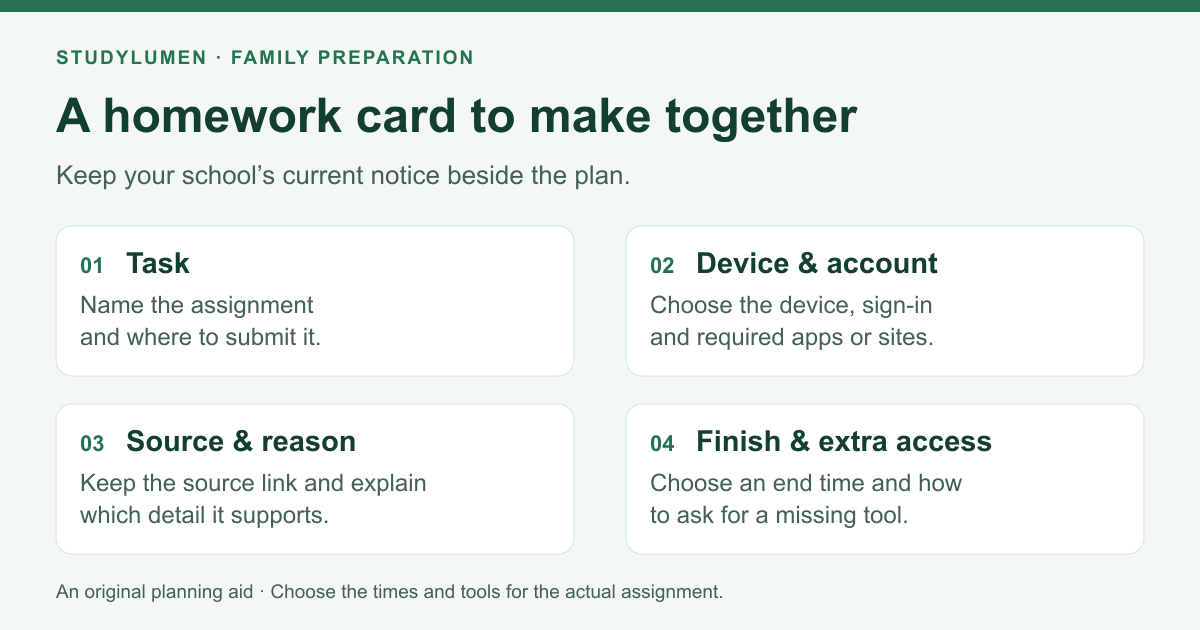
A family can put that idea into an ordinary assignment. Agree on what the device is for, then give your child a chance to explain an information choice. The card below is an original planning aid from StudyLumen; the example is illustrative.
- Card prompt
- Task
- Decide together
- Name the piece of work and where it will be submitted.
- Example for a history assignment
- Write one paragraph comparing two accounts of the same event; submit it through the class portal.
- Card prompt
- Device and account
- Decide together
- Identify the device, sign-in and required apps or sites.
- Example for a history assignment
- Use the assigned laptop and school account for the portal. Put the personal phone on its charging spot.
- Card prompt
- Source and reason
- Decide together
- Record who produced a source, when it was written, and why it supports the answer.
- Example for a history assignment
- Keep the two source links and a sentence explaining which detail each one supports.
- Card prompt
- Finish and extra access
- Decide together
- Choose an end time and how to ask for a missing tool or more time.
- Example for a history assignment
- Work from 4:30 to 5:15. If another site is needed, show the task and name the site before changing the plan.
| Card prompt | Decide together | Example for a history assignment |
|---|---|---|
| Task | Name the piece of work and where it will be submitted. | Write one paragraph comparing two accounts of the same event; submit it through the class portal. |
| Device and account | Identify the device, sign-in and required apps or sites. | Use the assigned laptop and school account for the portal. Put the personal phone on its charging spot. |
| Source and reason | Record who produced a source, when it was written, and why it supports the answer. | Keep the two source links and a sentence explaining which detail each one supports. |
| Finish and extra access | Choose an end time and how to ask for a missing tool or more time. | Work from 4:30 to 5:15. If another site is needed, show the task and name the site before changing the plan. |
The times are household choices for this example. A different assignment may need a different window, or no screen at all. Copy the four prompts onto paper if that is easier than keeping another document open.
Make one source choice visible
A child can finish reading a page without knowing who wrote it. During a research assignment, ask them to show you the original page behind one useful claim. Look together for the author or organization, the date, and the passage that supports the answer.
For the history example, two pages might describe the same event from different positions. Ask what each source helps explain, and what would need another source. If a page repeats a quotation, follow its link to the original before using the quotation in the assignment.
You do not need to turn each evening into a fact-checking exercise. One clearly explained source choice gives the “source and reason” line something concrete to record. If the teacher has supplied materials or a citation format, use those instructions first.
Check the account before changing a control
A personal phone, a school-issued Chromebook and a school account added to a family device can have different people responsible for settings. Write down which one the task uses before changing a limit.
Google’s Family Link Chromebook guidance says that, for a school account on a school-issued Chromebook, the school administrator determines which Google services the student can access. If the class portal is unavailable there, take the problem to the school’s support contact.
Google also distinguishes a school account added as another user on an Android device: its account guidance says Family Link parental supervision does not apply to that account. Keep that separate-user case distinct from an additional account inside the child’s existing profile. Check the instructions for the actual arrangement rather than assuming every school sign-in behaves alike.
On the card, record the school help contact or the parent responsible for the personal device. That gives your child somewhere to take an access problem without switching accounts or devices to get around a restriction.
Turn the card into an Android routine
For a compatible supervised Android device, Google’s Family Link schedule instructions describe School time schedules and allowed apps. Review the days, hours and required apps against the card. Our School time and homework time guide covers the distinction between those two windows.
If your family uses StudyLumen on a supervised Android device, map the card to a scheduled routine with one rule set for the selected apps. When a blocked tool is needed, a temporary access request can give the supervisor a specific decision; an approved request ends at its recorded expiry. See the StudyLumen homework mode guide. Android’s notification or Do Not Disturb settings handle notification silencing separately.
Keep the answer that needs another conversation
After the assignment, ask which line on the card was wrong or missing. Perhaps the portal needed a different sign-in, the teacher had already supplied both sources, or the work took longer than expected.
Change that line before the next similar task. If the issue belongs to the school, keep a short description of the task, device and access problem for the next conversation. Over time, the card can become more specific to your child’s work while the school notice remains easy to find.
Sources
- SEP Acuerdo 09/09/26, dated gazette PDF copy, printed pages 157–168 — publication 22 September 2026; first transitory provision gives 3 November 2026.
- UNESCO: pairing school screen regulation in Mexico with digital literacy and continuous monitoring — announcement published 9 October 2026.
- Google: use Family Link with a Chromebook — school-account and administrator scope; checked 10 October 2026.
- Google: create and manage a child’s Google account — separate Android user-account scope; checked 10 October 2026.
- Google: manage screen time schedules — current schedule and allowed-app instructions; checked 10 October 2026.