Guide ·
Check the Homework Window After the Clocks Change
Check your phone's local time and compare the saved homework schedule with your family's plan after the clocks change.
On this page6 sections
After a clock change, do the saved homework days, start and end still match your family's plan? Before making an edit, compare the phone's local clock and the times shown in the scheduling app with the window you want.
A short note makes that comparison easier. Keep the intended homework window beside the saved settings, and check each scheduling app separately.
Use the date for your region
The UK government's calendar lists 25 October 2026 for the clocks going back. For locations following the U.S. daylight saving time schedule, NIST lists 1 November 2026 as the end date.
Those are regional dates. Use your location's official time notice to decide whether a clock change applies to you. The useful moment for this check is after the phone shows the current local time.
Check the clock and time zone
On a personal Android phone, check the date, local time and time zone before comparing schedules. Google's Clock help describes separate controls for automatic date and time and for the time zone. Available options vary by device.
If the clock or zone looks wrong, follow the current device help or ask its administrator. For a school-managed phone or tablet, the school can explain which settings it controls. Keep any adjustment to the device clock separate from an edit to the homework routine.
Write the window you want
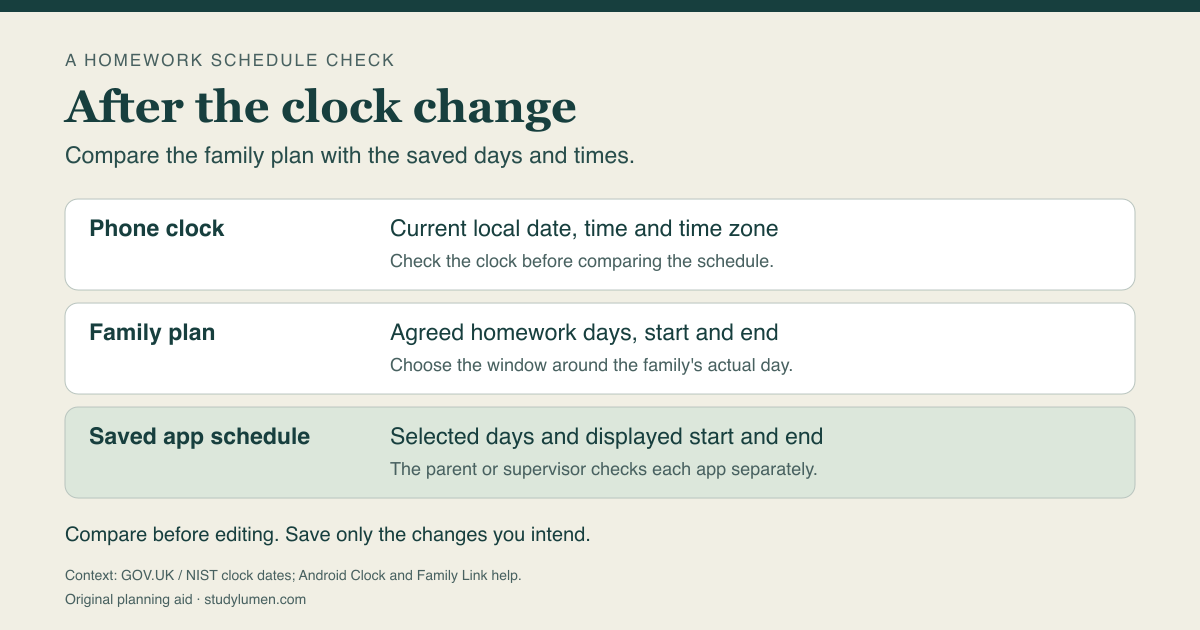
Use three records so the family plan stays visible while you review the phone. The household chooses the homework window around its actual day and the assignment's needs.
- Record
- Phone clock
- What to check
- Current local date, time and time zone
- Who confirms it
- The phone owner or device administrator
- Record
- Family plan
- What to check
- Agreed homework days, start and end
- Who confirms it
- The household
- Record
- Saved app schedule
- What to check
- Selected days and displayed start and end in each scheduling app
- Who confirms it
- The authorized parent or supervisor
| Record | What to check | Who confirms it |
|---|---|---|
| Phone clock | Current local date, time and time zone | The phone owner or device administrator |
| Family plan | Agreed homework days, start and end | The household |
| Saved app schedule | Selected days and displayed start and end in each scheduling app | The authorized parent or supervisor |
Use the school's current notice for any school timing you need, and mark an unknown detail for confirmation. Keep the family plan and the saved settings on separate lines so a difference is easy to spot.
Review Family Link on its own
In the parent's Family Link app, select the child and open Screen time, then Schedules. Google's schedule guide lists Downtime and School time for devices running Android 7 and up.
For a recurring plan, review Weekly schedule, the selected days, and its start and end. Google's procedure for changing a schedule for today is a separate choice. If you decide to edit the weekly schedule, select the intended days and times and save with Done.
Reading those settings lets you compare them with your note. An edit is a separate decision; check the app's current help if the displayed values are unclear.
Match the StudyLumen routine to the plan
On a supervised Android phone, a StudyLumen homework routine applies one selected app rule set during its scheduled window. The supervisor can compare its displayed times with the family plan and make any needed edit in StudyLumen.
If an extra study app is needed, a temporary access request requires supervisor approval. Approved access ends at the grant's recorded end time. Approval changes StudyLumen's own access restriction; check any other active controls through their own settings.
Sources
- GOV.UK: when do the clocks change?. Named 2026 UK dates.
- NIST: daylight saving time rules. Named 2026 U.S. DST dates and local-time scope.
- Google: set time, date and time zone. Android clock controls and device differences.
- Google: set a schedule on your child's device. Parent schedule review, weekly edits and saving.