Blog ·
Google Classroom Guided Learning: A Homework Access Checklist
Open a teacher-assigned Guided Learning activity in Google Classroom, keep the written directions nearby, and know who can resolve missing access.
On this page6 sections
Your student has a Guided Learning attachment in Google Classroom. Before starting the chat, open the assignment itself: its written directions still matter, and the school must have enabled the service for that student.
Google announced global availability of Guided Learning in Classroom on 3 November 2026. The useful first check at home is whether the teacher has assigned an activity and the student can open it. Availability in the product is only part of that check.
Open the activity from the assignment
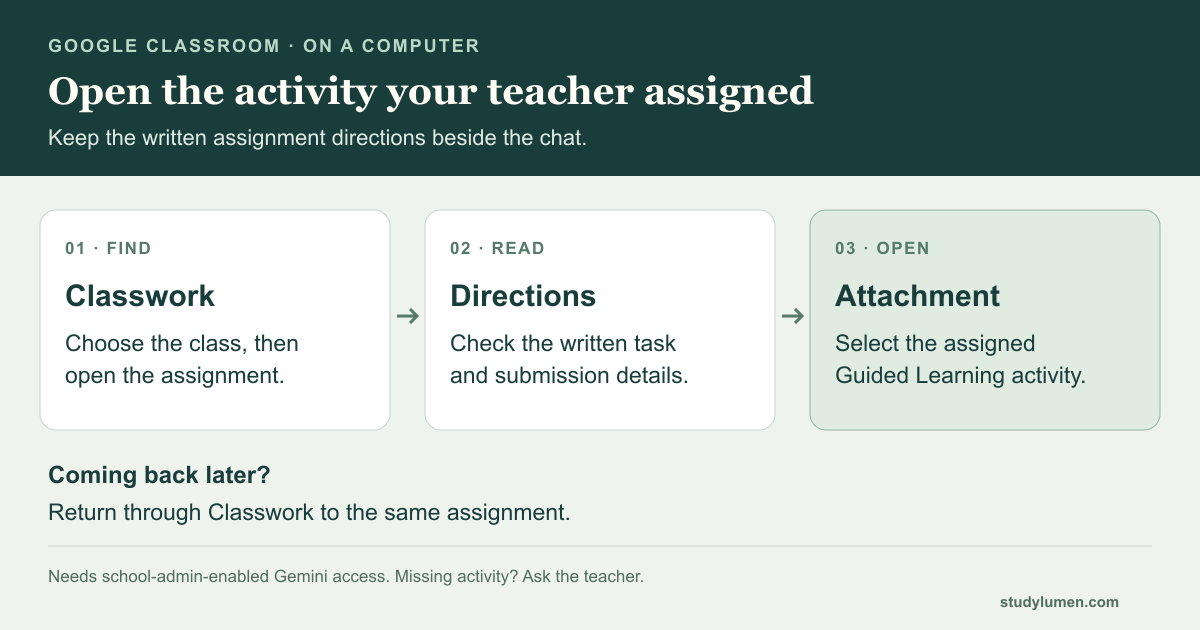
Google’s student guide gives this route on a computer:
- Open Google Classroom and select the class.
- Choose Classwork, then open the assignment.
- Select its Guided Learning attachment. The activity opens in a new tab that Google labels “Focus Mode.”
Keep the assignment tab available alongside the activity. If you cannot find the attachment, ask the teacher which assignment contains it. Starting a separate Gemini conversation would leave you without the teacher’s assigned activity.
Read the written directions before chatting
The teacher can attach class materials to the activity and add directions in the assignment’s Instructions field. Google’s teacher guide makes a useful distinction: those written instructions are for the student; Gemini does not reference them in the Guided Learning activity.
Read the assignment for the work the teacher expects, any limits on AI assistance and how to submit it. If those directions leave a question unanswered, ask the teacher. A chat response cannot settle an unclear submission requirement.
Google also warns that Gemini can make mistakes. Check important statements against the assigned materials, and take unresolved questions back to the teacher. Before using the activity, read its notice about which conversations the teacher can see.
Return through Classwork
To resume this assigned activity, go back to the assignment in Classroom. Google says assigned Guided Learning conversations and their history are accessed through Classwork rather than the Gemini sidebar.
A small household note can help the next adult assisting with homework find the right work. Record:
- The class and assignment title.
- The written task and where the teacher says to submit it.
- Any material or access problem still needing help.
Keep passwords and student identifiers out of a shared planning note. The note is a convenience for your household; use the actual assignment and the teacher’s instructions to establish what is due.
Ask for help with the part that is missing
An assigned activity can exist even when a student cannot use it. The teacher guide says students need school-admin-enabled access to the Gemini App, and they must be able to access the source materials chosen for the activity.
- What you see
- The activity attachment is missing
- Who can help
- Teacher
- What to ask
- Which assignment contains the Guided Learning activity?
- What you see
- The activity says access is unavailable
- Who can help
- Teacher and school administrator
- What to ask
- Has Gemini App access been enabled for this student?
- What you see
- An assigned source file will not open
- Who can help
- Teacher or school support
- What to ask
- Can the student access the materials selected for this activity?
| What you see | Who can help | What to ask |
|---|---|---|
| The activity attachment is missing | Teacher | Which assignment contains the Guided Learning activity? |
| The activity says access is unavailable | Teacher and school administrator | Has Gemini App access been enabled for this student? |
| An assigned source file will not open | Teacher or school support | Can the student access the materials selected for this activity? |
Send a short description of the problem through the school’s normal support route. Name the assignment and the message you see; keep passwords out of the request. Ask the teacher how to proceed with the work while access is being resolved.
Google’s November announcement also describes a Search pilot planned for select U.S. schools later that month and school-control changes to follow. Those have their own rollout. For this homework task, follow the current Classroom assignment and the school’s access instructions.
Where StudyLumen fits
If the student uses a computer for Classroom and a supervised personal Android phone nearby, give the phone its own agreed job. A StudyLumen homework routine can apply one selected app rule set during that household work window. The teacher’s assignment and school-account access remain with the school.
If another phone tool is needed briefly, a temporary access request requires supervisor approval and ends at the recorded end time. That approval changes StudyLumen access only; a school service or another device control needs its own authorized manager.
Sources
- Google’s 3 November education announcement. Classroom availability and the separate planned Search and school-control changes.
- Complete a Guided Learning activity in Classroom. Official student procedure.
- Create and manage Guided Learning activities. Teacher procedure, access prerequisites and the Instructions field.