Guide ·
CFISD’s Device Framework: A Parent’s Homework Checklist
Check CFISD’s classroom software limits, confirm after-hours device options, and keep required homework access available alongside a personal-phone plan.
On this page7 sections
A homework session can involve a district laptop, a personal phone and an assignment that needs both. For a Cypress-Fairbanks ISD family, the useful first step is to identify which device and activity each rule covers.
CFISD’s October 6 announcement says its new instructional technology framework reached families on October 1, 2026. It describes classroom software limits and parent choices for school devices. Use the checklist below to confirm the school options and decide how your personal-phone plan will work alongside them.
Read the minutes with the activity
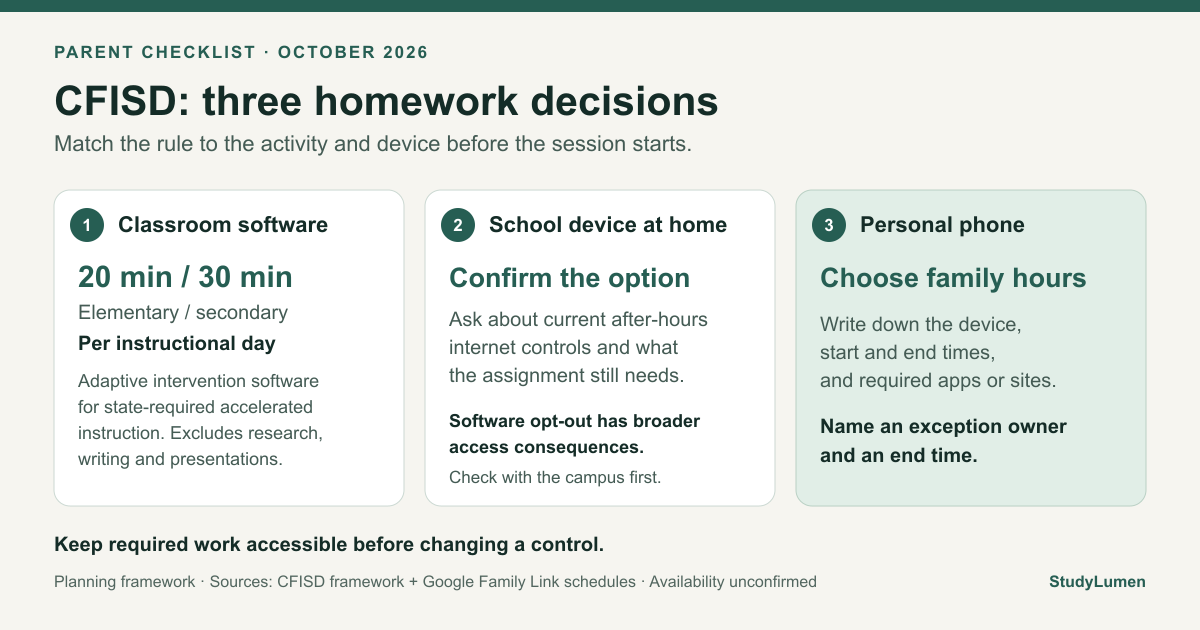
The district framework limits adaptive intervention software to 20 minutes per instructional day at elementary level and 30 minutes at secondary level, for state-required accelerated instruction. It explicitly excludes active tasks such as research, writing and creating presentations from that limit.
Those numbers therefore describe a particular classroom activity. When reviewing homework, start with the assignment and the software it requires rather than using 20 or 30 minutes as a total household screen allowance.
Confirm the school-device option
The October 6 news calls after-hours internet restrictions and full technology opt-out options incoming updates. The undated framework describes parent restrictions in the present tense. These pages leave actual account availability unclear as of our October 7 review.
Before relying on a school-device control, check what your parent account currently offers or ask the campus technology contact. Confirm which device it covers, what access it changes and when it takes effect. If you need the laptop to stay at school, the framework identifies that choice for elementary families; ask the campus how to arrange it.
Keep the assignment available
A software opt-out has broader consequences than a nightly pause. CFISD’s opt-out information says a student who opts out will have no Chromebook beyond required online assessments and no access to student software during classroom instruction or other activities.
The framework also preserves access for required assessments, electives requiring technology and IEP/Section 504 or other specialized instruction. Before selecting an option, ask the school how the student will complete the assigned work and retain the access they need.
Have these details ready:
- Assignment: the task, required app or site, and due date.
- School option: an after-hours restriction, a keep-at-school arrangement or a software opt-out.
- Effect: what remains available and what the student loses access to.
- Help route: the campus contact who can clarify a missing or locked setting.
Choose the personal phone’s schedule
For a family already using Family Link on a supervised Android phone, Google’s schedule guide describes Downtime and School time on Android 7 and up. In the parent app, open Screen time → Schedules, choose the schedule, then set its days and start/end times. Check the allowed-app options alongside the hours: selected Unlimited Apps can remain usable.
Apply that procedure to the personal Android device in your family account. For the district laptop, use the school’s instructions and support contact. The two devices may need different access during the same assignment.
Write down what each rule covers
- Device or activity
- Adaptive intervention software in class
- Who handles it
- CFISD school staff
- What to confirm
- The instructional-day limits apply to that software for state-required accelerated instruction; research, writing and presentations are excluded.
- Device or activity
- District laptop used at home
- Who handles it
- Parent and campus technology contact
- What to confirm
- Current after-hours options, their effect on the assignment, and the broader consequences of a software opt-out.
- Device or activity
- Personal supervised Android phone
- Who handles it
- Family supervisor
- What to confirm
- Household hours, allowed apps and who approves extra access.
| Device or activity | Who handles it | What to confirm |
|---|---|---|
| Adaptive intervention software in class | CFISD school staff | The instructional-day limits apply to that software for state-required accelerated instruction; research, writing and presentations are excluded. |
| District laptop used at home | Parent and campus technology contact | Current after-hours options, their effect on the assignment, and the broader consequences of a software opt-out. |
| Personal supervised Android phone | Family supervisor | Household hours, allowed apps and who approves extra access. |
Then make a short household plan. Fill in the actual devices and times your assignment needs:
- Device: which laptop or phone is being used.
- Hours: when the homework session starts and ends.
- Required access: the app, website or class resource to keep available.
- Exception: who approves extra access and its end time.
- Owner: who can change the school setting or household schedule.
Apply the phone decision with StudyLumen
On a supervised Android phone, a StudyLumen homework routine can apply one selected rule set during the hours you choose. Keep the class app available while selected recreational apps pause. If the decision concerns a website, enable website filtering separately from the app rule.
When an assignment needs an extra tool, a temporary access request can give the supervisor a specific request to approve or deny, with access ending at the recorded time. That applies your household decision to the phone; the campus still handles the district device.
Sources
- CFISD: October 6 framework announcement — announcement, distribution date and incoming-update wording.
- CFISD: Student Technology Framework — activity-specific limits and parent choices.
- CFISD: framework flyer PDF — the full instructional-day scope and required-access exceptions.
- CFISD: student-software opt-out information — consequences for Chromebook and class-software access.
- Google Family Link: device schedules — personal Android schedule and allowed-app settings.