Blog ·
Boston Device Policy Preview: Four Questions for Families
Read Boston's device-policy preview, take four practical questions to the school, and check the personal phone's separate home schedule.
On this page7 sections
If your family uses a personal laptop for schoolwork, Boston's device-policy preview raises a practical question: which device would your child use instead, and where would it be available? Take a short question list to the school, then write the personal phone's home plan separately.
Read the dates in Boston's preview
The October 14 School Committee materials link a Boston Public Schools memo dated October 14, 2026. It previews a proposed personal-device policy.
The memo plans formal submission in January 2027, describes a vote planned for the winter, and gives the 2027–28 school year as the intended start. Those are separate plans in the preview. Ask your school for its current written instructions before changing what your child brings.
Four questions to take to the school
The preview describes listed personal devices being switched off and kept inaccessible throughout the school day, including lunch and passing periods. It includes personal laptops and tablets, with school-administered devices provided as necessary. School leaders would choose the storage method.
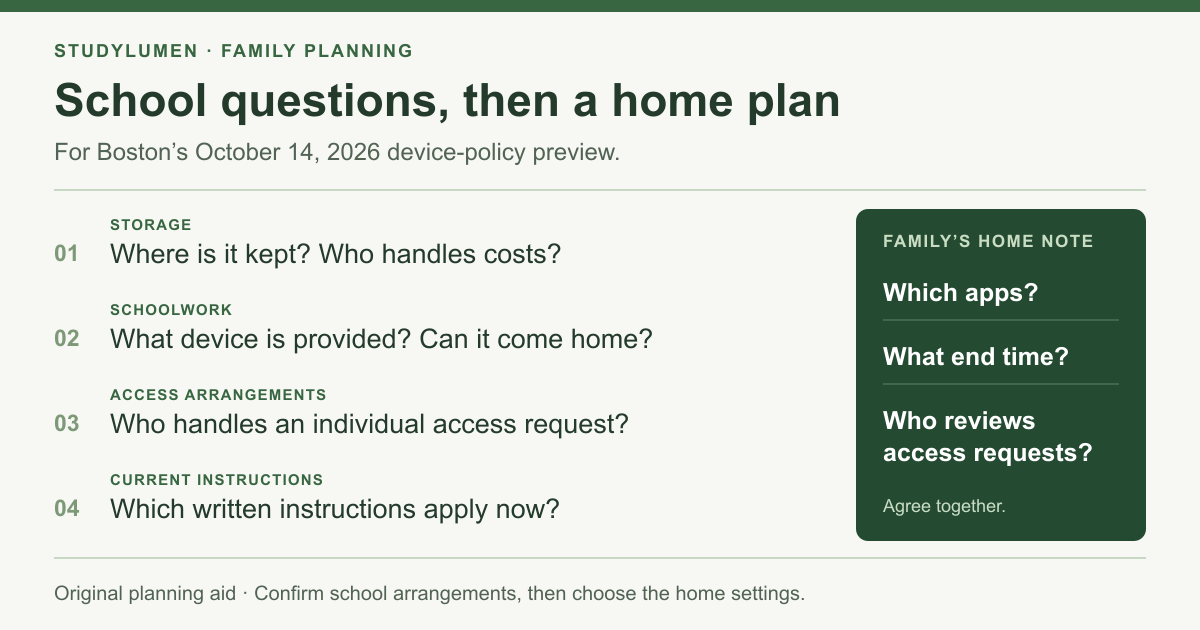
Use these questions to record what your school tells you:
- Topic
- Storage
- Ask the school
- Where would devices be kept, and who handles costs?
- Record the answer
- The method and the contact for questions
- Topic
- Schoolwork
- Ask the school
- Which device would be provided, and could it come home?
- Record the answer
- Where schoolwork can be completed and how to get help
- Topic
- Access arrangements
- Ask the school
- Who handles an individual device-access request?
- Record the answer
- The school contact and request process
- Topic
- Current instructions
- Ask the school
- Which written instructions apply now, and when should we check again?
- Record the answer
- The current document and the next update to review
| Topic | Ask the school | Record the answer |
|---|---|---|
| Storage | Where would devices be kept, and who handles costs? | The method and the contact for questions |
| Schoolwork | Which device would be provided, and could it come home? | Where schoolwork can be completed and how to get help |
| Access arrangements | Who handles an individual device-access request? | The school contact and request process |
| Current instructions | Which written instructions apply now, and when should we check again? | The current document and the next update to review |
Confirm the actual storage and take-home arrangements with the school. Keep personal supporting documents in the school's official process, rather than in a shared family planning note.
Write a separate home plan
Once you know which device is available for schoolwork at home, agree on the personal phone's role. A browser or messaging app may be needed for a particular task; name the task and the app together so another caregiver can understand the choice.
Your note can be one sentence: which apps stay available, when that home window ends, and which parent or guardian reviews a request for more access. Choose the times with your child and leave a date to revisit the agreement after the school's next update.
If the personal phone uses Family Link
Review the schedules already active on the phone before relying on it for homework. Google's schedule help describes parent-managed Downtime and School time on a supervised child's Android device, with Android 7 as the minimum.
In the parent's Family Link app, select the child and open Screen time → Schedules. Under School time, Weekly schedule contains the days and start/end times. The help page also explains how a parent chooses whether Unlimited Apps remain available during the schedule.
During School time, call and text notifications are silent, while the child can still call and text. That describes a software schedule. Check the school's storage instructions separately.
If the personal phone is an iPhone
Apple's current family setup guide describes Screen Time Schedules for choosing app access at different times of day. For the version-27 controls, the child needs their own account in Family Sharing, every device in the group needs the corresponding version-27 software, and the organizer or a parent/guardian must also update the family's parental controls.
The guide starts from Settings → Family → the child → Screen Time. If your family cannot update every device, Apple says the previous Screen Time controls remain usable. Follow the instructions for your family's actual setup when translating the home agreement into settings.
Apply the Android homework window
On a supervised personal Android phone, a StudyLumen homework routine can apply one selected app rule set during the agreed window. Check its allowed apps against the schoolwork task you recorded.
An approved temporary access request provides a StudyLumen exception until its recorded end time. Approval changes StudyLumen's own access restriction. Review any separate Family Link restriction with its parent or guardian, and use the school's support route for a school-issued device.
Sources
Checked October 16, 2026. The BPS memo is dated October 14 and linked in that meeting's materials. Apple's guide shows a September 22, 2026 publication date; Google's schedule instructions show no publication date.
- October 14, 2026 presentations and materials, Boston School Committee.
- Draft BPS Personal Electronic Device Usage Policy preview, Boston Public Schools; three-page memo.
- Set a schedule on your child's device, Google Family Link.
- Use Screen Time to manage your child's iPhone or iPad, Apple Support.