Blog ·
A Two-Hour Limit Is Not a Two-Kid Homework Plan
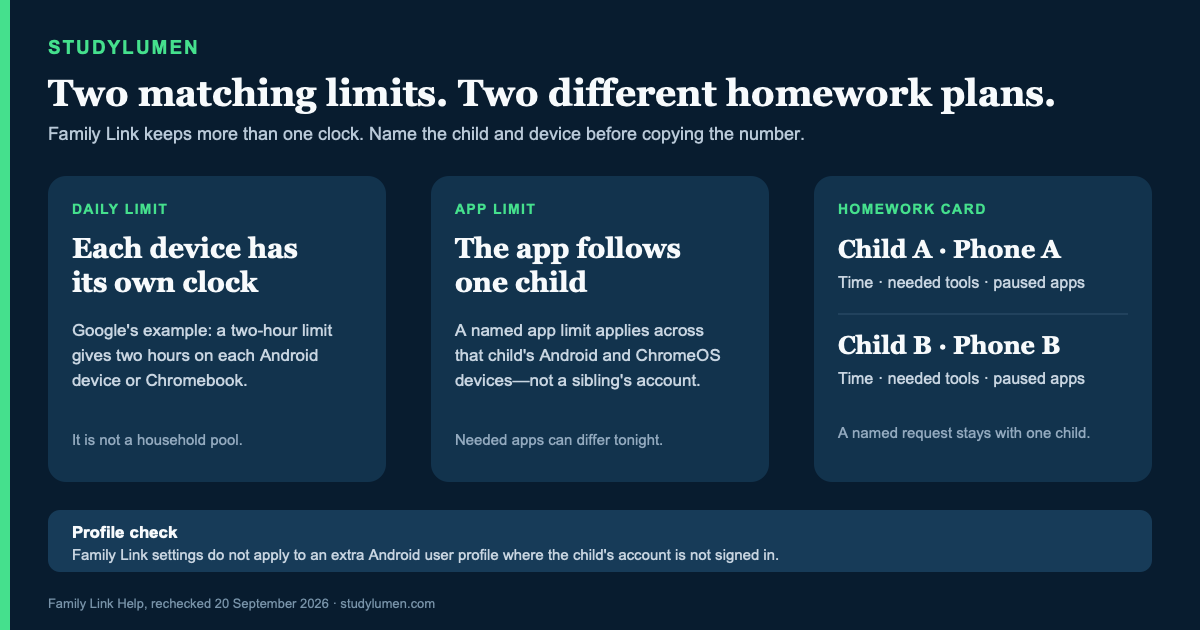
Family Link counts Daily Limits per device, while app limits follow one child. Use two named homework cards before copying the same rule to both phones.
On this page7 sections
Two phones sit on the kitchen counter. You select Child A in Family Link, enter a two-hour Daily Limit, then give Child B the same number. The settings match. The homework plan does not.
Family Link is keeping separate clocks. Daily Limits belong to devices, app limits follow one child across that child's supported devices, and a homework window is a household decision that neither setting writes for you. When two children need different school tools at the same time, copying the number is the easy part. Naming the two plans is the useful part.
“Two hours” is written on different device cards
Google's Family Link setup guide gives a specific example: a two-hour Daily Limit provides two hours on each Android device or Chromebook the child uses. A phone and a Chromebook do not draw from one two-hour pool.
Selecting Child B and entering the same number creates another setting. It does not turn the two children's time into a shared household allowance, and Google's example is not a recommended homework length. It only explains how the counter works.
Bonus time follows the same device-level logic. Google places it below the child's device name, and adding it for the day does not rewrite the Daily Limit, Downtime, or School time schedule.
Three controls, three different scopes
The labels sit close together in Family Link, but they answer different questions.
- Control
- Daily Limit
- Where it applies
- Each Android device or Chromebook the child uses
- What a parent still decides
- Whether the remaining time should be available during homework
- Control
- App limit
- Where it applies
- A named app across that child's Android and ChromeOS devices
- What a parent still decides
- Which apps this child needs for tonight's work
- Control
- Downtime or School time
- Where it applies
- A schedule configured for that child
- What a parent still decides
- Whether its hours and Unlimited apps fit the evening assignment
| Control | Where it applies | What a parent still decides |
|---|---|---|
| Daily Limit | Each Android device or Chromebook the child uses | Whether the remaining time should be available during homework |
| App limit | A named app across that child's Android and ChromeOS devices | Which apps this child needs for tonight's work |
| Downtime or School time | A schedule configured for that child | Whether its hours and Unlimited apps fit the evening assignment |
Google's app-limit documentation says a named limit applies across all of that child's Android and ChromeOS devices. It does not carry over to a sibling's account. Apps marked Unlimited do not count toward the Daily Limit and can remain available after the limit is reached.
School time can keep selected Unlimited apps available. It also silences call and text notifications while still allowing the child to call and text. That may suit the school day, but it does not automatically know that Child A needs a maths portal at 6:30 while Child B needs slides at 7:15.
The copied app list breaks at 6:30
Child A has a worksheet and a school portal. Child B is editing a group presentation. A copied rule can fail both of them in opposite ways: the first phone may have little Daily Limit left, while the second still has time; the portal may be essential on one phone, while the same app is irrelevant on the other.
Write the actual tool names instead of relying on a category such as “educational.” A calculator, school portal, documents app, slides app, browser, or printer companion has a visible job. The always-available apps guide can help separate tonight's tools from the feeds and games that can wait.
This is also where consistency gets difficult. In a May 2025 survey of 3,054 U.S. parents or guardians of a child age 12 or younger, Pew Research Center found that 86% had rules about when, where, or how screens could be used. Only 19% said they followed those rules all the time. The survey did not measure homework results. It does show why a rule needs to be clear enough to use on an ordinary, busy evening.
An extra Android profile sits outside the supervised one
Family Link controls apply when the child's Google Account is signed in to the Android user profile. Google's Android sign-in instructions say that only one child account can be added to a user profile. If the device has another profile where that child is not signed in, the child's Family Link settings do not apply there. Google recommends protecting other profiles with a PIN or password.
That is a configuration boundary, not a second homework clock to use. Check which profile each child actually uses before deciding that the limits are working.
Most Family Link supervision tools also do not carry over to iPhone, iPad, or a computer other than a Chromebook, according to Google's supported-device guide. If two children share one tablet instead of using separate personal devices, use the shared-family-tablet plan; the account and handoff decisions are different.
Write two cards before opening Family Link
Put the decisions on paper first. The cards can be short, but each one needs a child and a device name. That is what stops a copied setting from masquerading as a shared plan.
Child A's card
- Device name: ____________________
- Homework window: ________ to ________
- Needed apps and sites: ____________________
- Apps that can wait: ____________________
- One named access request, if needed: ____________________ for ______ minutes
Child B's card
- Device name: ____________________
- Homework window: ________ to ________
- Needed apps and sites: ____________________
- Apps that can wait: ____________________
- One named access request, if needed: ____________________ for ______ minutes
Now open Family Link and compare each device card with the paper. A Daily Limit can stay if it helps the family, but it is not the homework window. App limits and Unlimited apps should match the child who will use them. If the two children share a table, charger, printer, or adult help, stagger the windows on purpose rather than letting a depleted device clock make the choice.
When the two cards need to run on schedule
Paper may be enough. When a family wants those two cards to repeat automatically on supervised personal Android devices, StudyLumen can pair each Android separately and give each child a distinct routine. Each routine activates one rule set; website filtering is optional. More than one supervised device requires StudyLumen Premium. The QR-pairing guide shows the device-by-device setup.
A temporary access request is tied to one supervised child and a named app, site, or extra-time target. An approved grant ends at its recorded end time; it does not rewrite the sibling's policy. StudyLumen does not replace Family Link, supervise an iPhone or a separately managed school account, or promise grades and concentration. The Family Link comparison explains where the two products differ.
Sources
- Google For Families Help, Get started with Family Link, retrieved 20 September 2026.
- Google For Families Help, Set app time limits on your child's device, retrieved 20 September 2026.
- Google For Families Help, Set a schedule on your child's device, retrieved 20 September 2026.
- Google For Families Help, Sign your child in on an Android device, retrieved 20 September 2026.
- Google For Families Help, Learn which devices can be supervised, retrieved 20 September 2026.
- Pew Research Center, How parents approach their kids' screen time and methodology, published 8 October 2025 and rechecked 20 September 2026.