Blog ·
Seattle Is Ending K–2 Take-Home iPad Assignments. What About Homework?
Seattle's K–2 iPad plan starts in January 2027 and generally allows 0–30 classroom minutes. Families still need to ask what homework will require at home.
On this page7 sections
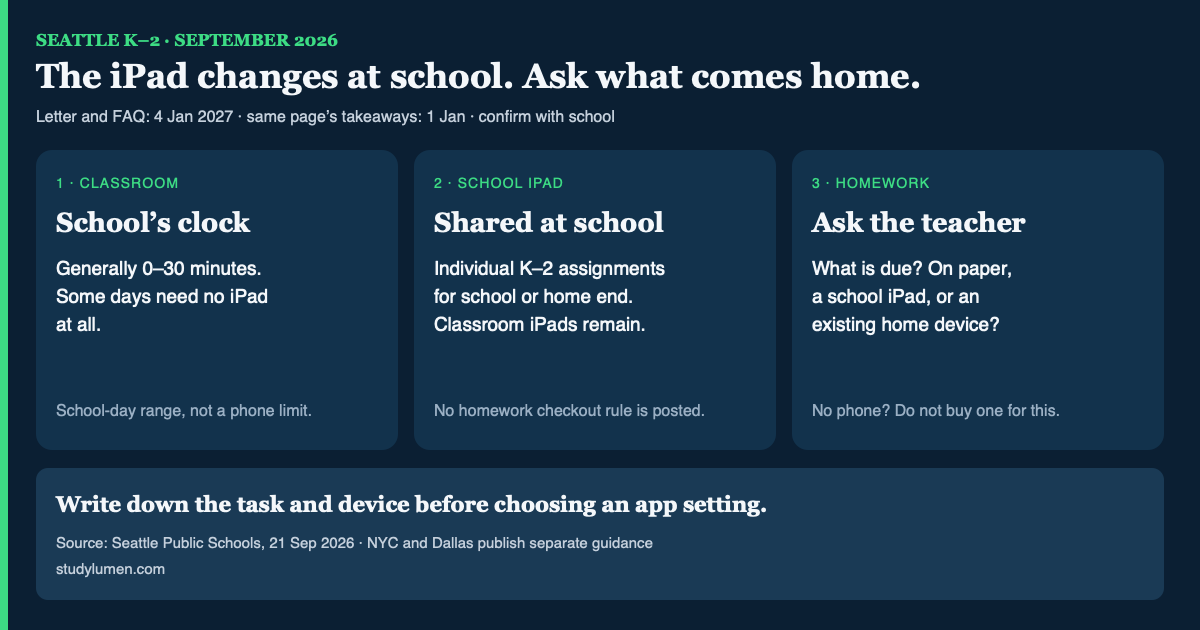
Seattle Public Schools plans to stop assigning every K–2 student an iPad for use at school or at home. Shared iPads will stay in classrooms instead, with daily technology use generally ranging from 0 to 30 minutes. Neither line tells a parent what an assignment will require after school. That is the question to ask before copying a classroom number into a phone setting.
The letter says 4 January; the takeaways say 1 January
In a letter posted on 21 September, Seattle Public Schools says the K–2 change begins on 4 January 2027. Its FAQ repeats that date. A Key Takeaways box on the same page says 1 January 2027. Until the district resolves its own discrepancy, a family planning around the change should confirm the date with the school. It is not in force this September.
The letter describes 0–30 minutes of technology use during the instructional day, not a required 30-minute session. Some days may involve no iPad use. The announcement covers kindergarten through second grade, not grades 3–12; students who need technology for accessibility, assessment, or other approved learning will still have it.
A 25 September roundup shortened Seattle's grade band to K–1. The district's letter says K–2. Use the district's grade band, and keep its classroom range separate from a home rule.
The missing detail is what comes home
Seattle's current one-to-one model assigns an iPad that a K–2 student may use at school or at home. Under the announced model, iPads become shared classroom resources. The letter does not say whether a device can be checked out for homework after the change, or which assignments will still need one.
If a child currently brings that iPad home, ask the teacher what an assignment will use after the switch: paper, a school-provided device, or an online tool available another way? Those are questions, not options the district has promised. Families with an IEP, 504 plan, or assistive-technology need should also ask how the stated support will work outside class.
New York and Dallas are different classroom clocks
District numbers travel well in headlines. Their scope often does not. The New York City Public Schools guidance and Dallas ISD's September guidelines describe their own classrooms, not Seattle's or a family's phone.
Three districts' different classroom screen-time guidance
- School system
- Seattle
- What its own page says
- K–2 technology use generally ranges from 0–30 minutes in the instructional day, starting in January 2027.
- School system
- New York City
- What its own page says
- Grades 2K–2 have no one-to-one screen time. For grades 3–5, the city recommends no more than 30 minutes a day; for grades 6–8, no more than 45.
- School system
- Dallas
- What its own page says
- For a seven-hour instructional day, the post recommends maximums of 60 minutes in pre-K–2, 90 in grades 3–5, and 120 in grades 6–8. High-school use varies by pathway.
| School system | What its own page says |
|---|---|
| Seattle | K–2 technology use generally ranges from 0–30 minutes in the instructional day, starting in January 2027. |
| New York City | Grades 2K–2 have no one-to-one screen time. For grades 3–5, the city recommends no more than 30 minutes a day; for grades 6–8, no more than 45. |
| Dallas | For a seven-hour instructional day, the post recommends maximums of 60 minutes in pre-K–2, 90 in grades 3–5, and 120 in grades 6–8. High-school use varies by pathway. |
New York names exceptions, including out-of-school learning such as remote instruction days. That example does not say every homework screen is exempt. Dallas calls its numbers recommendations, though the same post quotes an official saying the district has enforced strict limits. Neither page measures how long a particular child needs for tonight's assignment.
Family Link counts device time, not the assignment
Google's Family Link help says a daily limit applies to each Android device or Chromebook a child uses. In Google's example, a two-hour limit means two hours on each device. That setting cannot translate Seattle's classroom range into a homework plan.
Family Link's School time schedule is also set by the parent, not the district. On supported Android devices, it makes fewer apps available during chosen hours, while apps marked Unlimited can remain available. A school iPad managed by its district is a different device and administrator.
If there is no personal phone or tablet in the homework routine, there is no phone limit to set. A K–2 classroom change is not a reason to buy one.
Write down the homework question first
Before choosing an app setting, make a small card for the actual assignment:
- Task: What is due, and when?
- Device: Paper, a school-managed iPad, or an existing home device? If the school iPad is changing, ask the teacher rather than guessing.
- Access: If a personal device is needed, which app or site must stay available, and when should the homework window end?
That card still works when the answer is paper. It also gives a school a precise question about a missing device, instead of asking whether its classroom 30 minutes “counts” at home.
Where StudyLumen fits
If an existing supervised personal Android is part of the homework plan, StudyLumen can apply the selected app rules during a scheduled study routine; website filtering is optional. A needed class app can remain available, and a temporary access request can end at its recorded time. The card supplies the task and window first.
StudyLumen does not set Seattle's classroom range or manage a district iPad. If homework uses only paper or a school-managed device, the family can use the card without the app.
Sources
- Seattle Public Schools: K–2 technology-use letter and FAQ, 21 September 2026
- New York City Public Schools: 2026–27 AI and screen-time guidance
- Dallas ISD: classroom screen-time guidelines, 1 September 2026
- Google Family Link Help: manage your child's screen time
- Google Family Link Help: set a schedule on your child's device
- District Administration: 25 September roundup