Blog ·
The 2026 Screen-Time Census: What the Hours Mean
Read the 2026 Common Sense census medians with their survey limits, then make a separate plan for homework tasks, devices and access.
On this page5 sections
A screen-time headline can sound like a number to put straight into the phone’s settings. The 2026 Common Sense Media census reports entertainment use. A homework plan still needs the assignment, a usable device and the time your family intends to set aside.
Keep the survey result beside that plan, with its definition attached. It can help you understand the headline without becoming an automatic allowance or limit.
Read the number with its question
Common Sense Media released its census on 27 October 2026. SSRS surveyed 1,211 U.S. young people ages 9–17 online from 29 April to 11 May 2026, recruiting through parents on its Opinion Panel and weighting the responses.
The time question asks about the previous day’s activities for fun. The report gives these overall medians, the middle of the reported distribution:
- Group
- Tweens, ages 9–12
- Reported median
- 5 hours of entertainment screen use
- Survey base
- All tweens, n=614
- Group
- Teens, ages 13–17
- Reported median
- 8 hours 15 minutes of entertainment screen use
- Survey base
- All teens, n=597
| Group | Reported median | Survey base |
|---|---|---|
| Tweens, ages 9–12 | 5 hours of entertainment screen use | All tweens, n=614 |
| Teens, ages 13–17 | 8 hours 15 minutes of entertainment screen use | All teens, n=597 |
Activities can overlap, so totals are not a count of separate hours in the day. The report changed its age range and moved from means to medians; it says not to compare overall time with earlier census waves. October is the release date, not the fieldwork month.
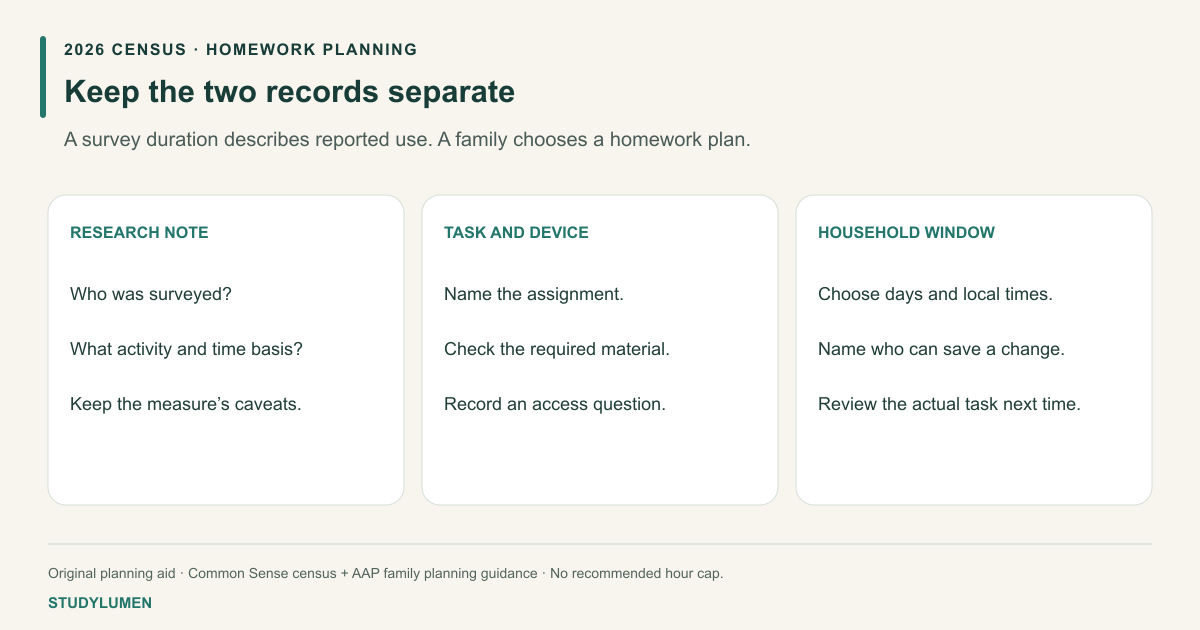
Give the homework plan its own questions
The American Academy of Pediatrics’ family media plan guidance advises making rules that fit the family’s routines and values. Begin with the assignment in front of you rather than borrowing another household’s example.
Use the following note for one actual homework session. It is an original planning aid, not a questionnaire or a recommendation about how many hours a child should spend on screens.
- Record
- Research note
- What belongs here
- The population, entertainment-use measure, median and overlap caveat
- Useful question
- What did this number describe?
- Record
- Homework task
- What belongs here
- The assignment and the tool or material it needs
- Useful question
- What must the student be able to open?
- Record
- Device and access
- What belongs here
- The device, account and person who can resolve an access problem
- Useful question
- Has the required material opened on this device?
- Record
- Household window
- What belongs here
- Agreed days, local start and end
- Useful question
- What window fits this assignment and the family’s day?
| Record | What belongs here | Useful question |
|---|---|---|
| Research note | The population, entertainment-use measure, median and overlap caveat | What did this number describe? |
| Homework task | The assignment and the tool or material it needs | What must the student be able to open? |
| Device and access | The device, account and person who can resolve an access problem | Has the required material opened on this device? |
| Household window | Agreed days, local start and end | What window fits this assignment and the family’s day? |
Suppose a worksheet is on paper but its instructions sit in the school portal. Record both parts. The device may be needed to read the instructions without being needed throughout the worksheet. That is a decision about this task, not something the survey median can settle.
Review the tool that will apply your choice
A daily app allowance and a scheduled work period are different settings. Write which one you intend to change before opening an app. If the device is school-managed or a control is locked, take the specific access question to the school or administrator.
For mixed-use apps, keep the assignment purpose beside the app name. A video platform can hold the teacher’s link and a recommendation feed; the name alone does not identify which part the student needs. Our educational and recreational use guide has a task-based way to record that distinction.
Use the agreed window on Android
On a supervised Android phone, a StudyLumen homework routine applies one selected app rule set during the window the supervisor saves. Choose that window from the household plan rather than copying a census duration into the setting.
Keep the task note for the next review. If the assignment changes or a required tool will not open, revisit that specific row. The useful result is a plan someone can explain and check on the intended device.
Sources
- Common Sense Media: 2026 census. Published 27 October 2026; links the report and questionnaire.
- 2026 census report. Figure E, printed page 11; introduction and methods. Report and questionnaire are one research origin.
- AAP: make a family media plan. Updated 20 January 2026; family planning guidance.